1. Open a Familiar Worksheet Before Making a New One
Open myproject01, the folder from Part 2. Your AGENTS.md describes the AI's role, reference materials, and goals. This time, give it those instructions along with a worksheet you already use in class.
Even a small box on a worksheet may have a purpose. A blank space after an example could be for calculations or for recording a partner's explanation. AI may read the arrangement and wording without knowing why you put that space there. We will separate what the document shows from the intentions you add.
Today's result is materials/lesson-input.md: a record of source content, structure, and teaching intentions that you can use when preparing the next lesson.
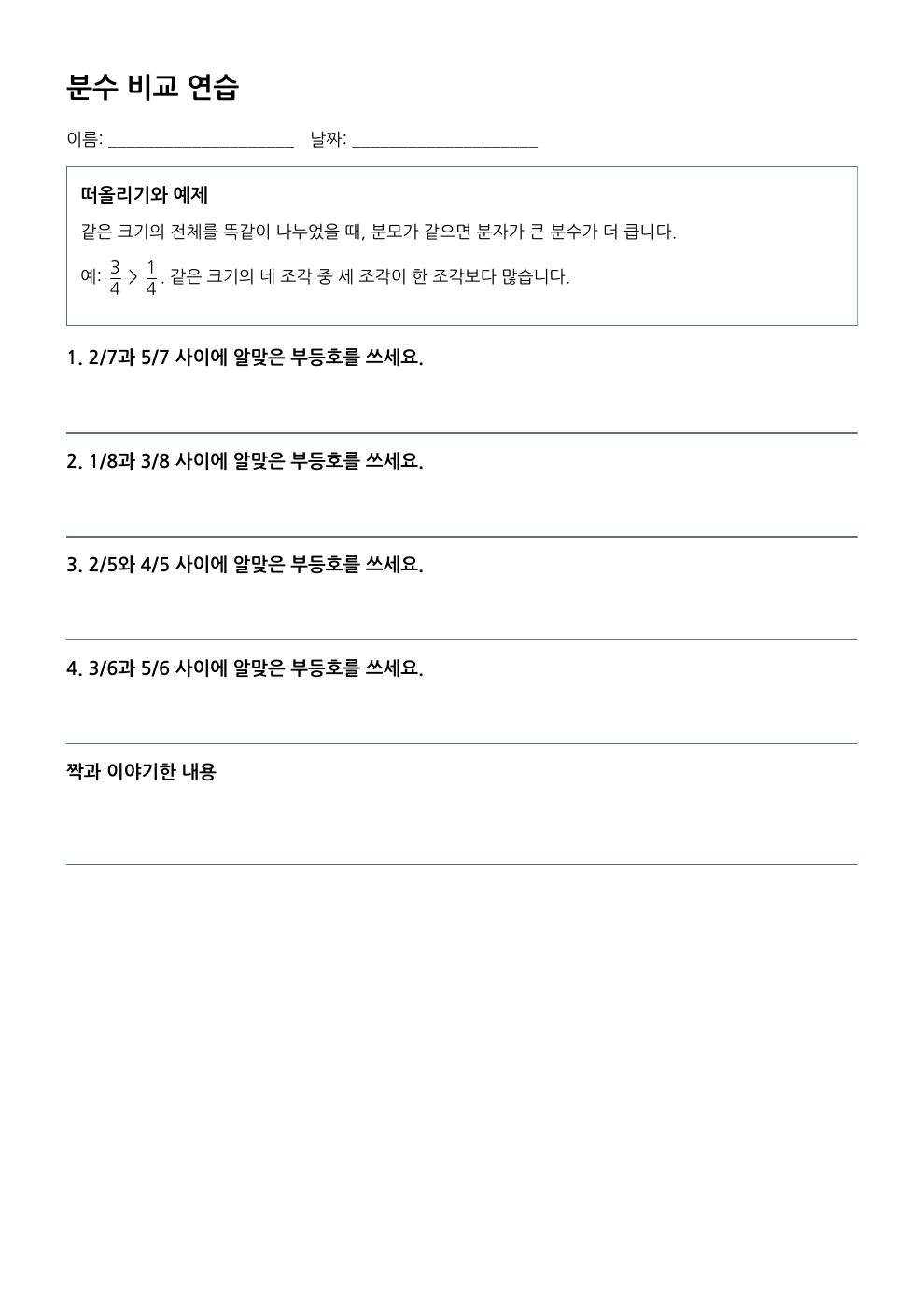
This article analyzes a fraction worksheet made for the workshop. Use the supplied file or your own material and follow the structure of the actual source.
Download the worked Korean worksheet
This workshop includes a purpose-made source worksheet and its revised output. The source has four same-denominator comparisons. The revision is a 25–30 minute inquiry for learners who already know that skill: predict and compare 3/4 and 5/8 using equivalent fractions, investigate different-sized wholes, then author a problem and improve it with peer feedback.
Use 다음 대화 (Next conversation) to follow the Korean-language workshop example. Inspect the files on the left and the OpenCode conversation on the right, then perform each step in your own workspace.
2. Open OpenCode in the Same Folder
Use VS Code to view instructions and results, and OpenCode to ask AI to do the work. If this is your first session, follow the official getting started guide to install OpenCode and connect an AI provider. In a workshop, prepare with the facilitator and check your school's external-AI policy and the provider's pricing. Enter credentials in the designated authentication screen, not in lesson materials.
Open Terminal → New Terminal in VS Code. In PowerShell or the default macOS shell, pwd displays the current folder. Check that the path ends in myproject01, then launch OpenCode:
opencode
Once its chat input appears, send the requests below there. If the command is not found, check installation and reopen the terminal. Use /connect to connect a provider and /models to choose a model. The official TUI guide explains the interface.
Your AGENTS.md collects the project's role, materials, and goals. In this exercise, ask AI to confirm the instructions it applied.
작업 폴더에서 OpenCode 시작VS Code + OpenCode 확장 · 학습용 재현
파일 편집 보기 터미널myproject01 — Visual Studio Code− □ ×
AGENTS.md ×
myproject01 › AGENTS.md
1## 역할
2수업 자료를 함께 읽고 활동지를 설계한다.
3## 자료
4materials/original.pdf
5## 목표
6원본 구성과 수업 의도를 정리한다.
참고 문서 예시 · 실제 파일 내용은 프로젝트마다 다릅니다.
TERMINAL · OpenCode+ ··· ×
VS Code에서 할 작업
VS Code → 파일 → 폴더 열기 → myproject01 선택
탐색기에서 AGENTS.md와 materials 폴더 확인
myproject01 UTF-8 Markdown OpenCode
1 / 5
OpenCode 확장으로 연 터미널을 오른쪽에 배치한 학습용 예시입니다. 대화·승인·실행 결과는 가상이며 실제 파일이나 AI에 연결되지 않습니다. 작은 화면에서는 내부를 좌우로 스크롤하세요.
3. Add a Source Copy and Check What Can Be Read
Create a materials folder in Explorer and add a copy of an existing worksheet. Choose material you have permission to share, without student names, handwriting, or grades. Keep the original separately; do not change the copy's content during this task either. Replace existing-worksheet.pdf below with your actual filename. For an HWP or HWPX document, use its actual extension too.
A request you send to AI is a prompt. In OpenCode, typing @ lets you find and reference files in the conversation. Start by referencing the instructions and checking whether the document can be read.
PDF를 지정하고 원본과 대조VS Code + OpenCode 확장 · 학습용 재현
파일 편집 보기 터미널myproject01 — Visual Studio Code− □ ×
materials/original.pdf ×
myproject01 › materials/original.pdf
1분수 비교 연습
2설명: 같은 전체, 같은 분모의 비교
3예: 3/4 > 1/4
41. 2/7과 5/7
52. 1/8과 3/8
63. 2/5와 4/5
74. 3/6과 5/6
8짝과 이야기한 내용
참고 문서 예시 · 실제 파일 내용은 프로젝트마다 다릅니다.
TERMINAL · OpenCode+ ··· ×
opencodePDF를 지정하고 원본과 대조Build
도구 실행 예시
메시지 입력…
Build · 모델 선택은 실제 환경에 따라 다름tab agents
myproject01 UTF-8 Markdown OpenCode
1 / 4
OpenCode 확장으로 연 터미널을 오른쪽에 배치한 학습용 예시입니다. 대화·승인·실행 결과는 가상이며 실제 파일이나 AI에 연결되지 않습니다. 작은 화면에서는 내부를 좌우로 스크롤하세요.
Open the source beside the response and compare the passage AI shows. PDF reading and image recognition depend on the connected model and tools, so choose a method that fits your material.
Source type
Check in the reading result
If it is not readable
PDF with selectable text
Sentence order, table rows and columns, numerators and denominators
Provide text from the relevant page together with an image of the page.
Scanned PDF
Whether text inside the image was actually recognized
Use image input or an OCR tool; if neither is available, transcribe the relevant content yourself.
HWP or HWPX
Whether tables, formulas, and images are distinguished from body text
Connect a supported reader, or export a PDF copy from Hangul.
Record which parts were supplied as text, as images, or through your own explanation. Check unreadable questions in the source and supply the missing content.
Using rhwp for Hangul Documents
rhwp is an open-source tool that reads paragraphs, tables, formulas, and images in HWP 5.0 and HWPX and exports PDF. OpenCode can run rhwp to read a Hangul worksheet and use its content in the analysis.
With your facilitator, download the executable for your operating system from the official releases and make it available as rhwp in the terminal. If your environment uses MCP to connect AI with external programs, follow the official MCP guidance. This exercise uses the executable route.
Replace the filenames in this request with your own and send it to OpenCode.
rhwp로 한글 자료 읽고 PDF 열기VS Code + OpenCode 확장 · 학습용 재현
파일 편집 보기 터미널myproject01 — Visual Studio Code− □ ×
materials/기존학습지.hwp ×
myproject01 › materials/기존학습지.hwp
1한글 자료 경로 예시
2materials/기존학습지.hwp
3
4분수 비교 연습
5설명 → 예제 → 연습 → 짝 활동
6
7출력 위치
8materials/기존학습지-reference.pdf
참고 문서 예시 · 실제 파일 내용은 프로젝트마다 다릅니다.
TERMINAL · OpenCode+ ··· ×
opencoderhwp로 한글 자료 읽고 PDF 열기Build
▌
Build · 모델 선택은 실제 환경에 따라 다름tab agents
myproject01 UTF-8 Markdown OpenCode
1 / 8
OpenCode 확장으로 연 터미널을 오른쪽에 배치한 학습용 예시입니다. 대화·승인·실행 결과는 가상이며 실제 파일이나 AI에 연결되지 않습니다. 작은 화면에서는 내부를 좌우로 스크롤하세요.
These are documented commands AI can use. The first reads the document's internal structure and content; the second creates the reference PDF. For HWPX material, use the actual .hwpx input path.
Open the PDF and add your explanations while comparing the question order, tables, and formulas with AI's analysis. For any conversion warnings, check the corresponding part in the original Hangul document and supply the missing information. Now organize the content together in the next step.
4. Separate Read Content from Interpretation
After checking that content is readable, examine how the worksheet is used from beginning to end. The following request focuses on preserving the source before creating new questions.
원본의 구성과 교사 의도 함께 확인VS Code + OpenCode 확장 · 학습용 재현
파일 편집 보기 터미널myproject01 — Visual Studio Code− □ ×
materials/lesson-input.md ×
myproject01 › materials/lesson-input.md
1# 분석 초안
2
3관찰: 설명 → 예제 → 비교 문제 4개
4관찰: 마지막에 넓은 빈칸
5추정: 추가 풀이 공간
6
7교사에게 질문
8마지막 칸은 어떤 활동에 쓰나요?
참고 문서 예시 · 실제 파일 내용은 프로젝트마다 다릅니다.
TERMINAL · OpenCode+ ··· ×
opencode원본의 구성과 교사 의도 함께 확인Build
▌
Build · 모델 선택은 실제 환경에 따라 다름tab agents
myproject01 UTF-8 Markdown OpenCode
1 / 4
OpenCode 확장으로 연 터미널을 오른쪽에 배치한 학습용 예시입니다. 대화·승인·실행 결과는 가상이며 실제 파일이나 AI에 연결되지 않습니다. 작은 화면에서는 내부를 좌우로 스크롤하세요.
The following example distinguishes the supplied source fraction worksheet's structure from the teacher's intentions. If you use your own material, check its actual pages and questions.
What is visible in the source
AI's interpretation
Intent supplied by the teacher
Fraction diagrams and an opening explanation
Concept review
Recall last lesson's comparison of fractions with the same denominator.
One worked example
Method demonstration
Read it together and explain the comparison.
Four independent questions
Individual practice
Explain the reasons in words, not only calculate.
A large blank box at the end
Extra working space
Record a partner's explanation.
The last row reveals an important distinction. A large box is an observation; extra working space is an inference. Your comment, "That box is for a partner's explanation," determines what the next worksheet should preserve.
Find similar inferences in your own analysis and clarify them. If an unreadable diagram matters to the learning goal, explain it or provide it as a supported image.
5. Save the Checked Analysis in Markdown
If everything stays in chat, it can be hard to find which interpretation you accepted. A Markdown record that includes your explanations gives the next conversation the same reference point. Instead of reproducing the page exactly, preserve content order and relationships through headings, paragraphs, and tables.
Formulas can use LaTeX notation. For example, \frac{3}{4} represents the fraction 43. Check that numerators, denominators, and inequality signs match the original. Formula rendering in Markdown previews depends on the tool's settings; HTML will also need a separate math-rendering tool later.
Once you have checked the corrected analysis, ask AI to save it.
분석을 저장하고 다시 열기VS Code + OpenCode 확장 · 학습용 재현
파일 편집 보기 터미널myproject01 — Visual Studio Code− □ ×
materials/lesson-input.md ×
myproject01 › materials/lesson-input.md
1# 원본 활동지 분석
2
3## 구성
4설명 → 예제 → 비교 문제 4개 → 짝 활동
5
6## 교사가 확인한 의도
7친구의 풀이를 듣고 내 말로 적는다.
8
9## 다음 원고에서 바꿀 점
10같은 분모 비교는 선수 학습으로 두고, 막대 탐구와 학생 출제·친구 피드백으로 확장한다.
참고 문서 예시 · 실제 파일 내용은 프로젝트마다 다릅니다.
TERMINAL · OpenCode+ ··· ×
opencode분석을 저장하고 다시 열기Build
▌
Build · 모델 선택은 실제 환경에 따라 다름tab agents
myproject01 UTF-8 Markdown OpenCode
1 / 4
OpenCode 확장으로 연 터미널을 오른쪽에 배치한 학습용 예시입니다. 대화·승인·실행 결과는 가상이며 실제 파일이나 AI에 연결되지 않습니다. 작은 화면에서는 내부를 좌우로 스크롤하세요.
Open the file in Explorer and compare one question and one formula directly with the source. Read the recorded intentions too, including spaces such as the partner-explanation box. If you find a reading error, give its location and correct content, then check the correction. If unreadable content is needed for the next manuscript, resolve it or explicitly decide not to use that part and record the boundary.
If the analysis exists only in chat, ask AI to save it at the specified path. Close and reopen the file. When the checked content is still there, this task is complete.
6. Carry the Analysis into the Next Lesson
Your myproject01 now contains AGENTS.md, a source copy under materials, and the teacher-checked materials/lesson-input.md. Separating source observations from teaching intentions makes it easier to explain what the next worksheet should retain.
In Part 4, use this analysis to discuss what you want to change for the next lesson. Answer AI's questions, approve a plan, create the student manuscript and teacher's answers, and revise them after a separate review. Page size and printing come after content review, in Part 5.
💬 댓글
이 글에 대한 의견을 남겨주세요